Add staff members to TablelistPro so each person has their own login, permissions, and notification settings. Not sure how staff differs from promoters or servers? See Team.
Web
To add a staff member on the web, open the sidebar, click Settings, then Team, then Staff, then click the round + button in the page header.
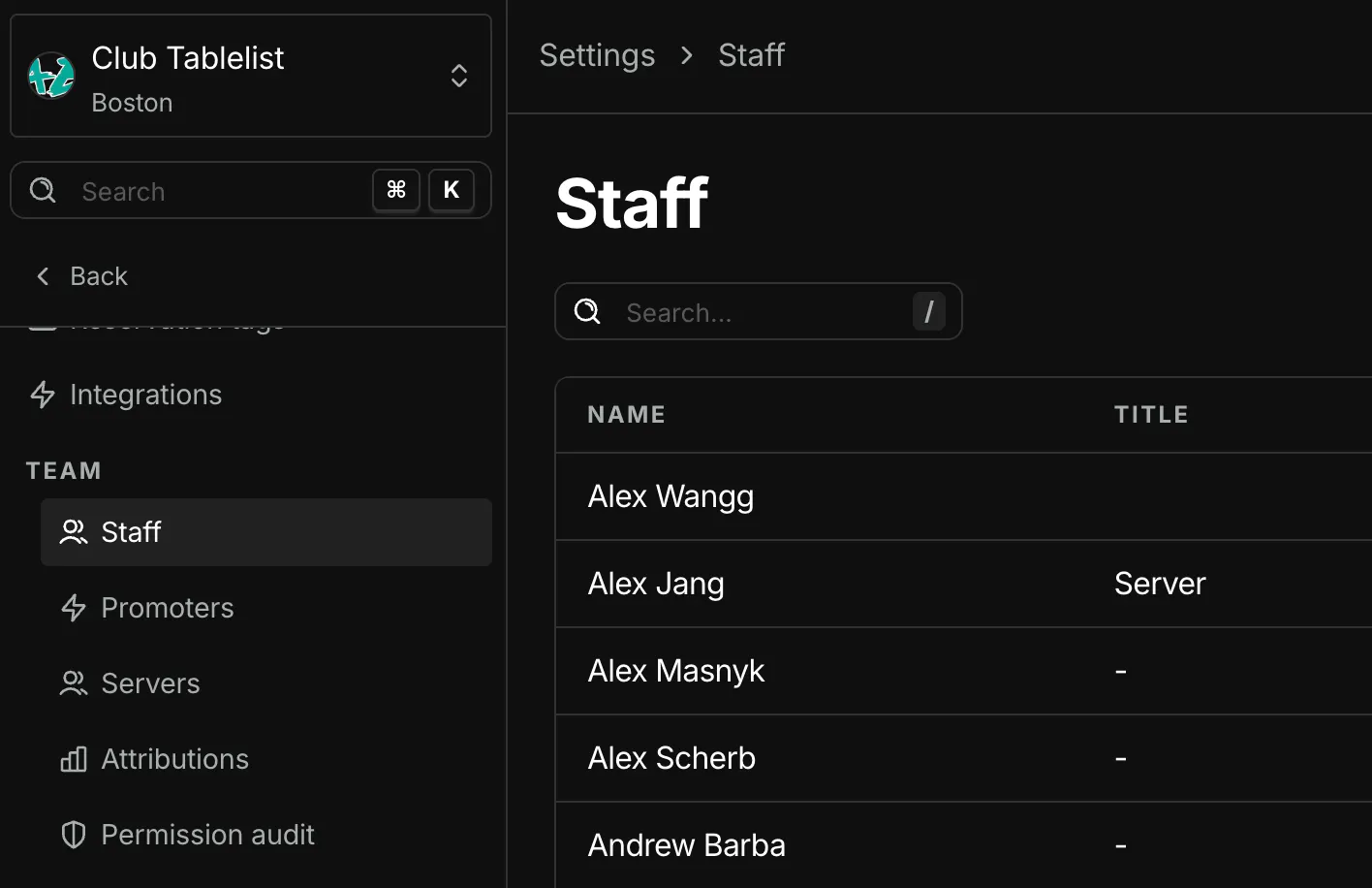
In the box that appears, under Info, fill in:
- First name
- Last name
- Email address
- They'll get an invite from TablelistPro to set their password and log in
- Phone number
- Title
- Profile picture
You must set permissions before they can access TablelistPro. Head to Choosing Staff Member Permissions for details.
They'll receive an email to set their password once you save.
iOS
To add a staff member through the TablelistPro mobile app on iOS, open the sidebar, tap Team, tap Staff, then tap the plus sign in the top right.
Enter a Name, Phone, Email, and Title (optional), then press Save.
They'll receive an email to set their password.
You must set permissions before they can access the account. Head to Choosing Staff Member Permissions for details.

Android
Android follows the same flow as iOS: Team -> Staff -> plus sign -> fill in details -> Save.
UI labels may vary slightly by device, but the steps and permissions flow are the same.