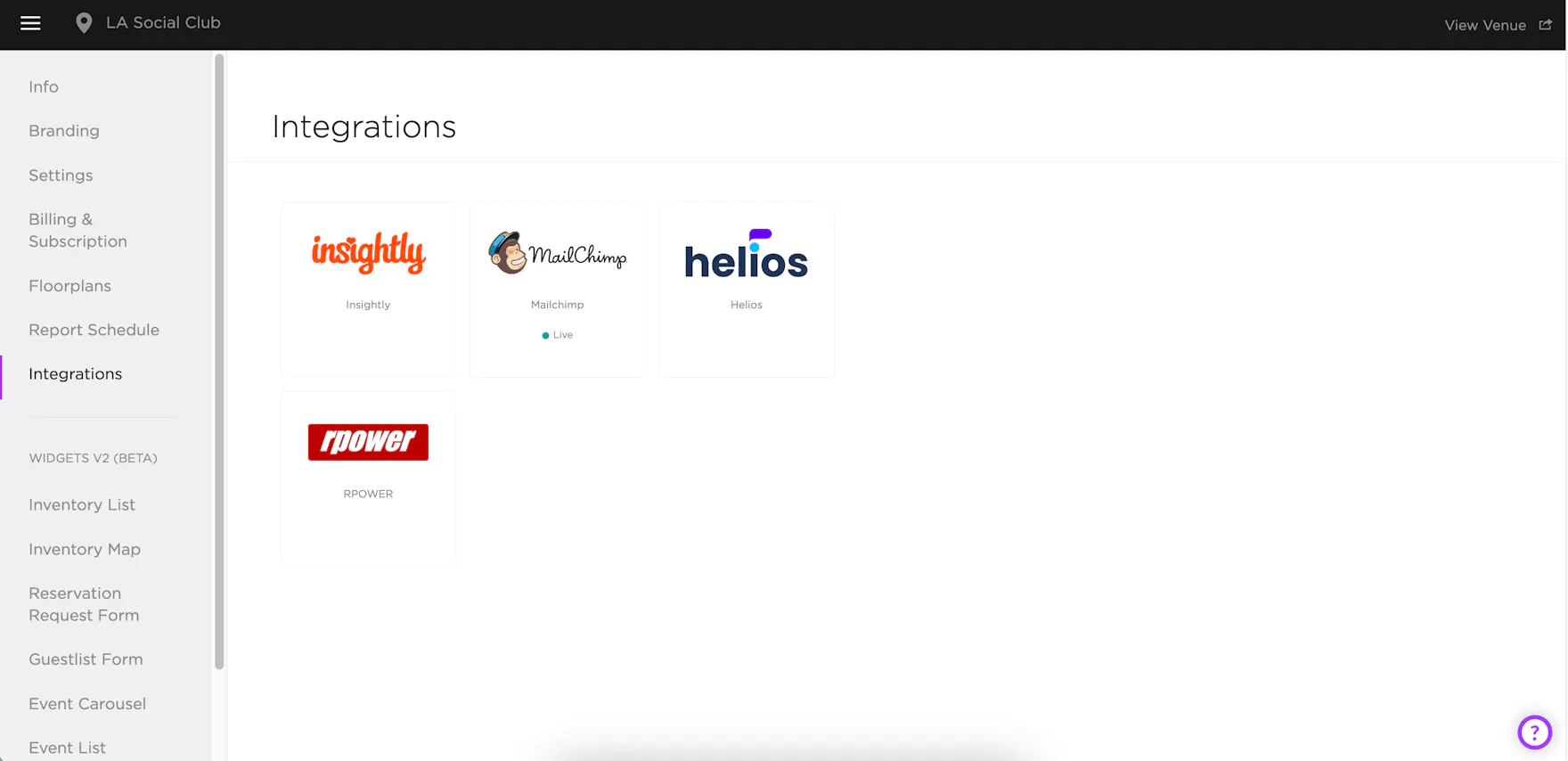
TablelistPro's Mailchimp integration automatically syncs your customer data from TablelistPro into Mailchimp.
For the Integrations page flow and how we store API keys, see Adding Integrations and Integration security and your data.
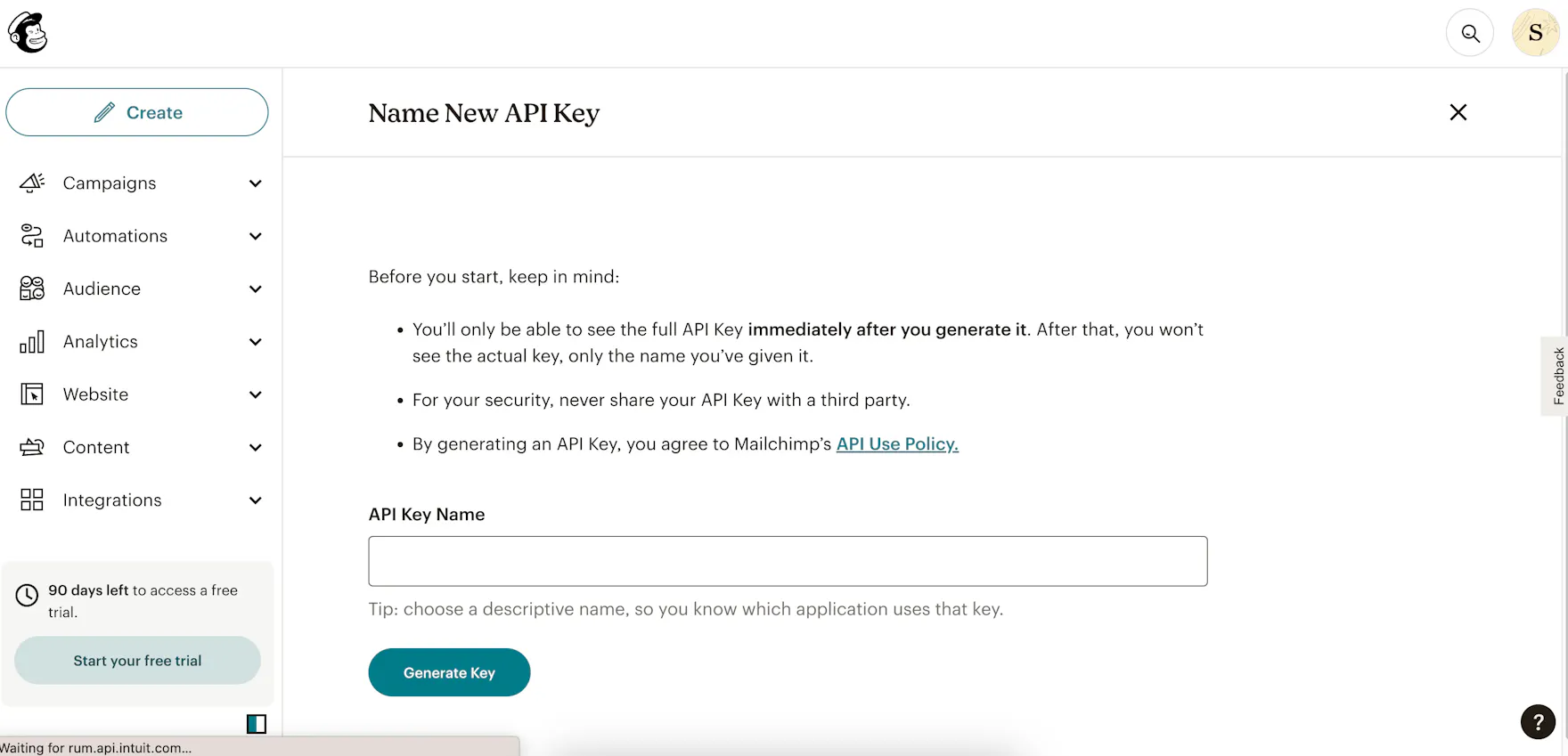
Create a Mailchimp API key
- Go to the API Keys section of your Mailchimp account.
- Click Create New Key.
- Name your key so you know TablelistPro uses it.
- Click Generate Key, then Copy Key to Clipboard and save it somewhere secure — you won't see the full key again in Mailchimp.
- Click Done.
Set up in TablelistPro
- Open the sidebar, click Settings, then Integrations.
- Click +, choose Mailchimp, and wait for the setup panel to open.
- Paste your API Key and enter your List ID.
- Click Save, then set the integration to Active.
After the first save, the API key is masked. Leave it blank on later edits to keep the existing key.
TablelistPro will create a Mailchimp list called {{ your venue name }} - Tablelist and add your customers to it.
To create your own lists in Mailchimp, copy customers from this list. Mailchimp guide: Copy or move subscribers to a list.