What is Customer Chat?
Customer Chat lets you send and receive text messages (SMS texts) and emails to/from your guests in real time through the TablelistPro web app and mobile app (new mobile app with chat coming soon!).
You receive the messages back in your chat inbox:
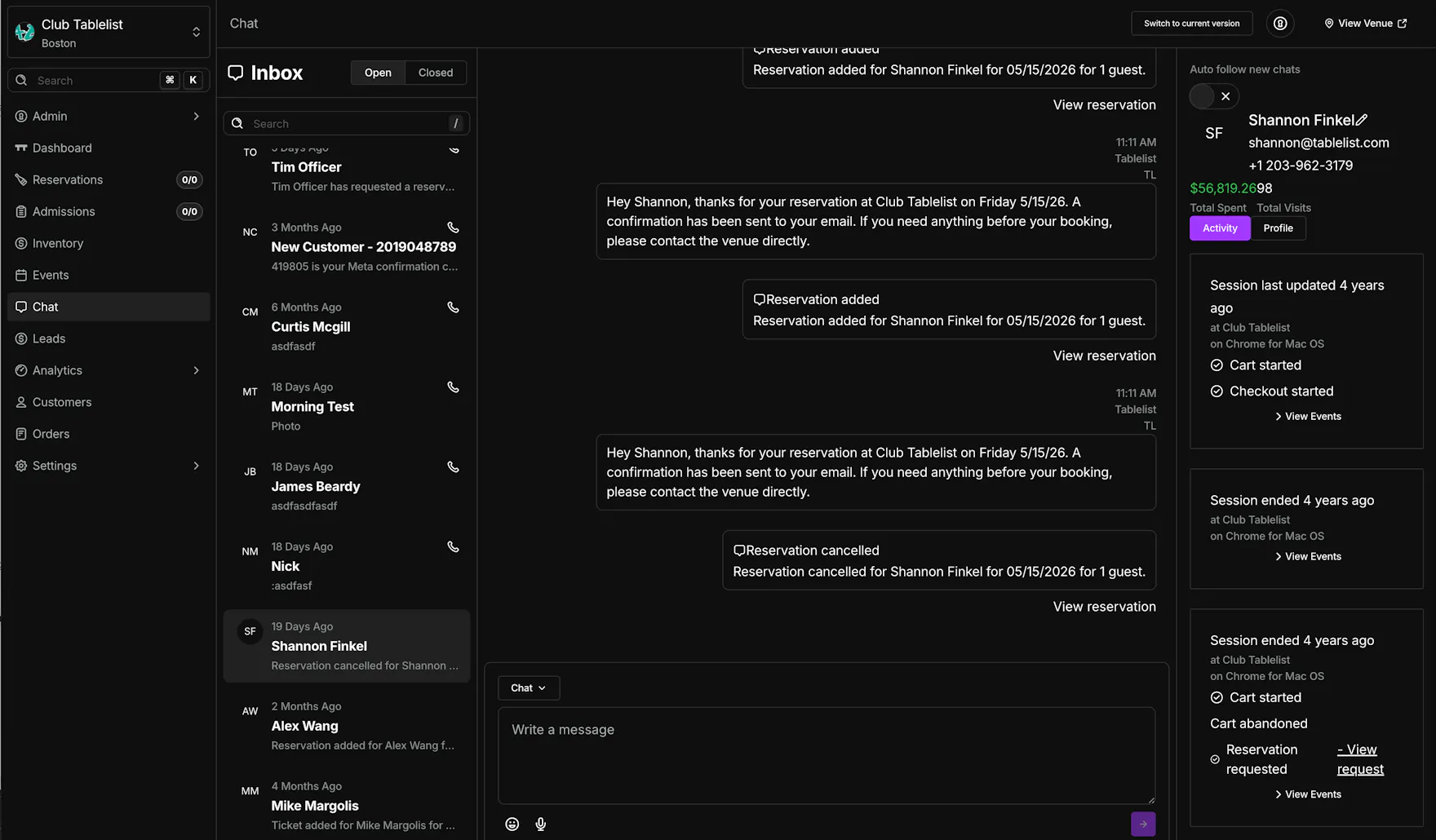
When you respond via the chat inbox, your guest gets your reply directly — as a text to their phone or an email to their inbox, depending on how they reached you.
How do I enable customer chat? What does it cost?
Customer Chat is an add-on feature and part of the Deluxe plan for $499/mo. When chat is on your plan, your venue gets a dedicated SMS number for guest texts.
One number for all guest texts. When Customer Chat is on, every SMS your guests receive from TablelistPro for that venue comes from the same number — including order confirmations, order updates, reservation-related messages, and replies from your Chat inbox. Guests see one consistent sender on their phone, which makes it easier to recognize your venue and reply in the same thread.
Your venue's chat email address
Every venue now has its own dedicated email address in the format [email protected].
One address for all guest emails. Every email your guests receive from TablelistPro for your venue — order confirmations, order updates, and other notifications — now comes from your venue's address. When a guest replies, their response routes straight into your Chat inbox as part of that customer's conversation thread.
Email or text? You'll know at a glance. Each message in a conversation shows an icon and label telling you whether it arrived as an email or a text message.
Heads up — this changes who handles guest replies. These emails used to come from a shared Tablelist support inbox, and guest replies (refund requests, date changes, and so on) were handled by our internal support staff on your behalf. Now those replies route directly to your chat inbox for your team to handle.
Where to find your chat phone number and email
Open the sidebar, click Settings, then Chat settings. You'll see your venue's dedicated chat phone number and email address — click either one to copy it.
Don't have chat enabled? You still get read-only access
If Customer Chat isn't part of your plan, you'll see all incoming chats in read-only mode — every text and email reply from your guests shows up in your Chat inbox, you just can't respond. To send replies from the inbox, add Customer Chat to your plan (Deluxe add-on).
How to Use Customer Chat
In your left sidebar, click Chat. You'll see your full chat history (open vs. closed conversations).
Click a conversation to reply. Multiple people in your organization can respond to each message, close it out, or mark it as private (for internal use only).
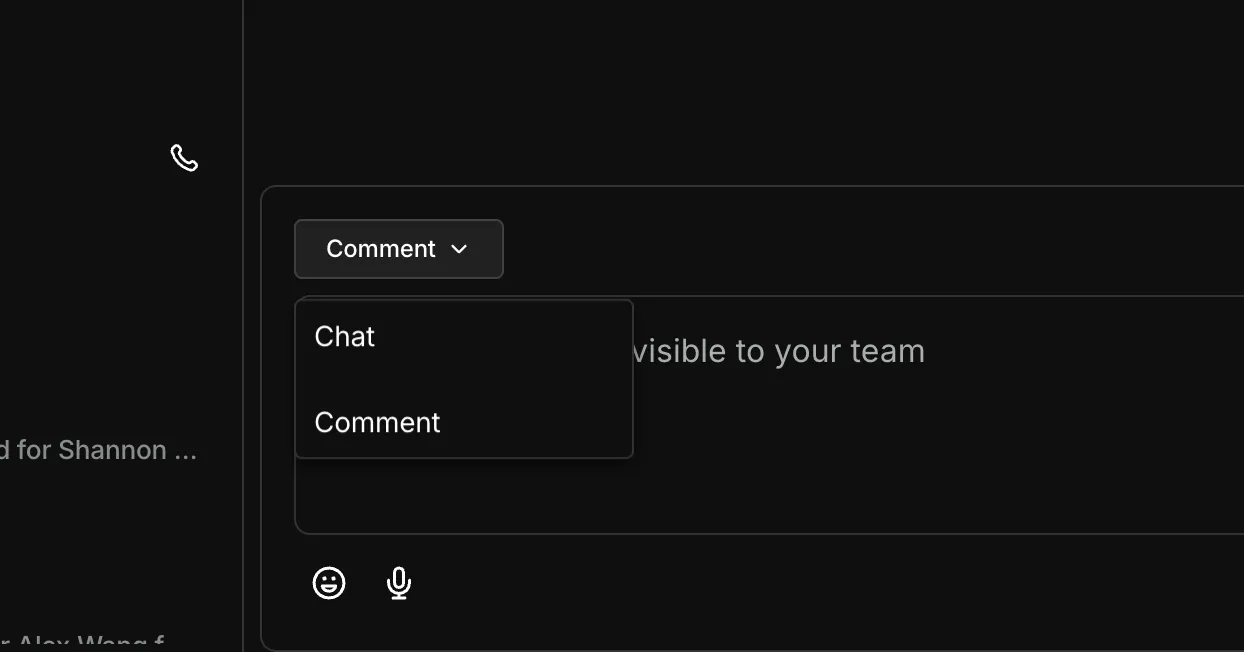
You can toggle to comments to send internal notes that only your team can see.
What are the benefits of Customer Chat?
- Centralizes all guest communication — texts and emails — into a single conversation thread per customer per venue
- Gives staff full visibility into guest history, past conversations, and booking activity
- Enables real-time communication between venue staff and guests
- Improves response times for reservation questions, updates, and support
- Automatically sends booking-related system messages when reservations change
- Stores communication history as part of the venue CRM for long-term customer insights