Review who changed what across your organization — reservations, venue settings, inventory, and more — without digging through individual records.
Open the sidebar, click Settings, then Activity (page title: Activity Logs).
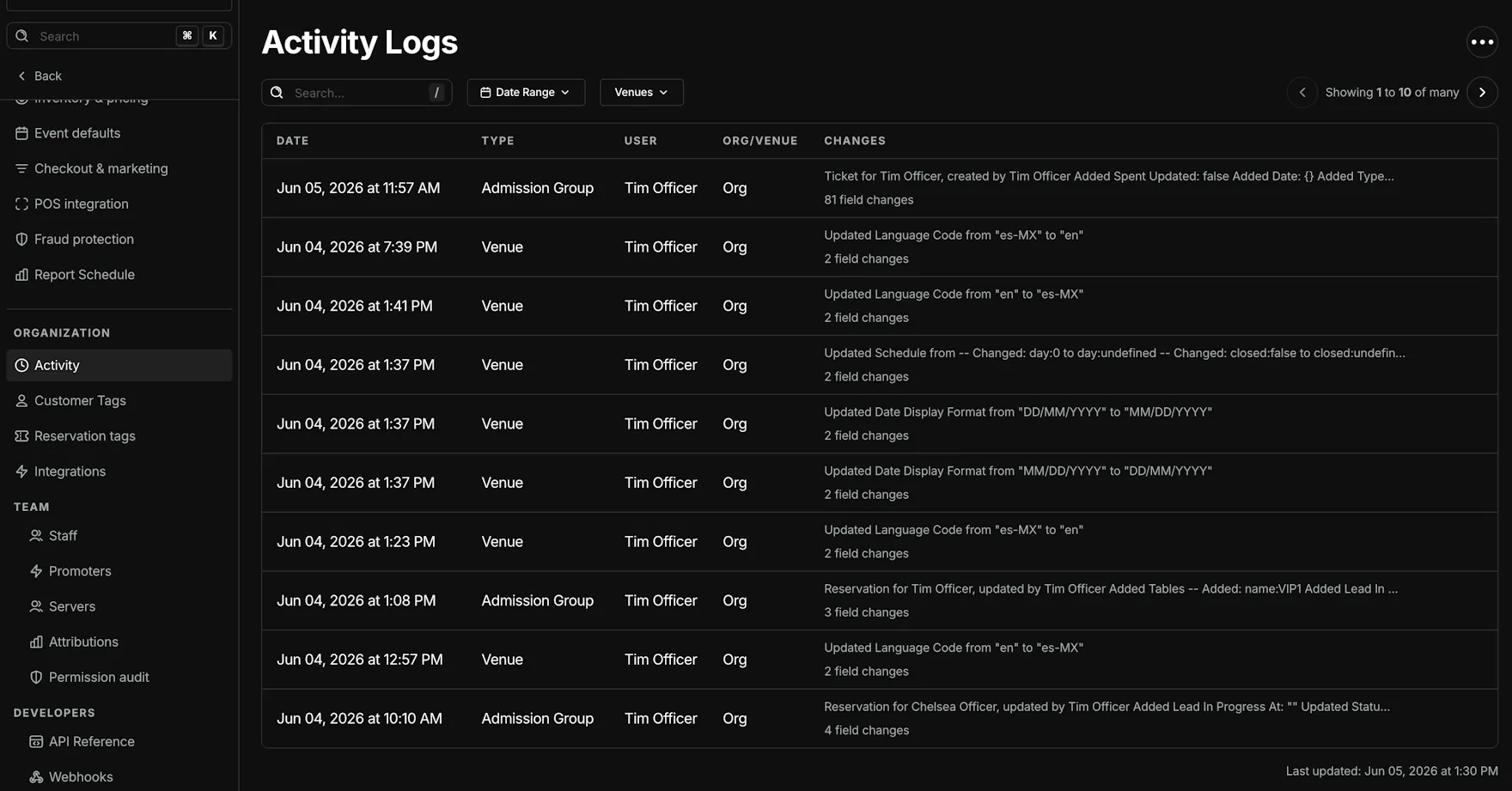
You need permission to update organization settings to view activity logs. Without it, you'll see a message that you do not have permission to view activity logs.
Activity logs are available on the web app only — not on iOS or Android.
Filters
Narrow the list before you open a row:
- Search — Match text in the change summary.
- Date Range — Limit logs to a start and end date (presets available).
- Venues — Show activity for one or more venues, or leave open for org-wide entries.
The list refreshes automatically. Last updated at the bottom shows when the table last synced.
Activity table
Pagination — 10 entries per page. Use the controls above the table to move between pages.
| Column | What it shows |
|---|---|
| Date | When the change was recorded |
| Type | What was changed — for example Admission Group, Venue, Event, Customer, Inventory, Permission, or Integration |
| User | Staff member who made the change |
| Org/Venue | Org for organization-wide changes, or the venue name when the change was venue-scoped |
| Changes | Short preview of what changed, plus a count of field changes when available |
Click any row to open the detail slide-out.
Activity log details
The slide-out shows Activity Log Details for the selected entry:
- User — Name, email, and profile image when available
- Record — Document type and action (for example Admission Group: Updated Document), a copyable document ID, and when the log was recorded
- Summary — Full description of the change (for example a reservation update or a venue setting change)
Close the panel when you're done reviewing.
Export
Open the ⋯ menu in the page header and choose Export to download activity logs for offline review or compliance.
Tips
- Org-scoped changes show Org in the Org/Venue column; venue-specific work shows the venue name.
- Use Date Range when you're investigating something that happened on a specific night or during a settings rollout.
- To compare staff access levels, use Permission audit under Settings → Team → Audit — that's separate from this change history.
FAQ
Can I see who updated a reservation, ticket, or guest list?
Yes. Open Settings → Activity and look for Admission Group entries. Use Search or Date Range to find the booking, then check the User column or open the row for full details.
Can I see who changed venue settings?
Yes. Filter for Venue or Organization type logs. Org-wide changes (like language or date format) show Org in the Org/Venue column.
Can I see who edited an event or inventory?
Yes. Activity logs track Event and Inventory changes with the staff member who made them.
Can I see who updated a customer profile?
Yes. Look for Customer entries in activity logs.
Can I see who changed staff permissions or integrations?
Yes. Permission and Integration changes are logged here too. For a side-by-side view of what staff and promoters can access today, use Permission audit instead.
Can I see who ran or scheduled a report?
Yes. Report activity appears in the logs when applicable.