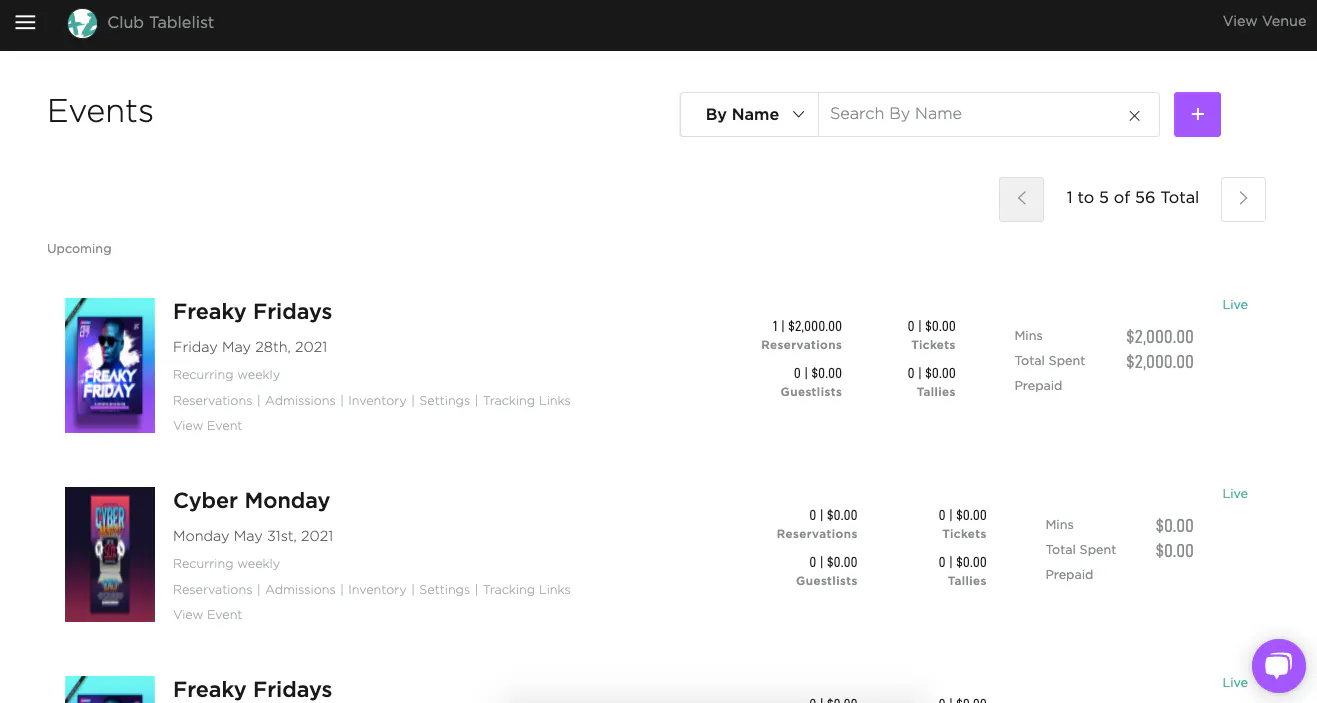
To view your events, open the sidebar and click Events. You'll see a list of upcoming events and their details, and you can search by name or date.
Once an event is created, you can drill into its Reservations, Admissions, Inventory, Settings, and Tracking Links.
You'll also see totals for Reservations, Guest Lists, Tickets, Tallies, Minimums, and Total Spent Prepaid.
To jump to a specific event page, find it in the list and click View Event.
To print a QR code for that page, open Actions (or the three-dot menu) and click Print QR code. Guests scan it with their phone's camera. You can also print from the event slide-out: open the three-dot menu and click Print QR code (between Duplicate and Delete).
That printed code opens the event buy page. It does not credit a staff member, promoter, or custom source — those bookings show as None in Sales by Attribution.
To credit someone for that event, share their event tracking link. To print a QR that credits a source for the venue (all upcoming events), use Sharing on Settings → Team → Attributions or Promoters. See Managing attributions.